Google Drive starts out tidy, but then a few people join, files pile up in personal folders, and nobody can find last month's proposal. Knowing how to organize Google Drive is mostly about a few early choices: where files live, how folders are laid out, and what everyone calls things. This article is a simple guide for teams. It covers where files should live, seven steps to set things up, and how to clean up Google Drive when it has already got messy.
Start With the Right Place for Files
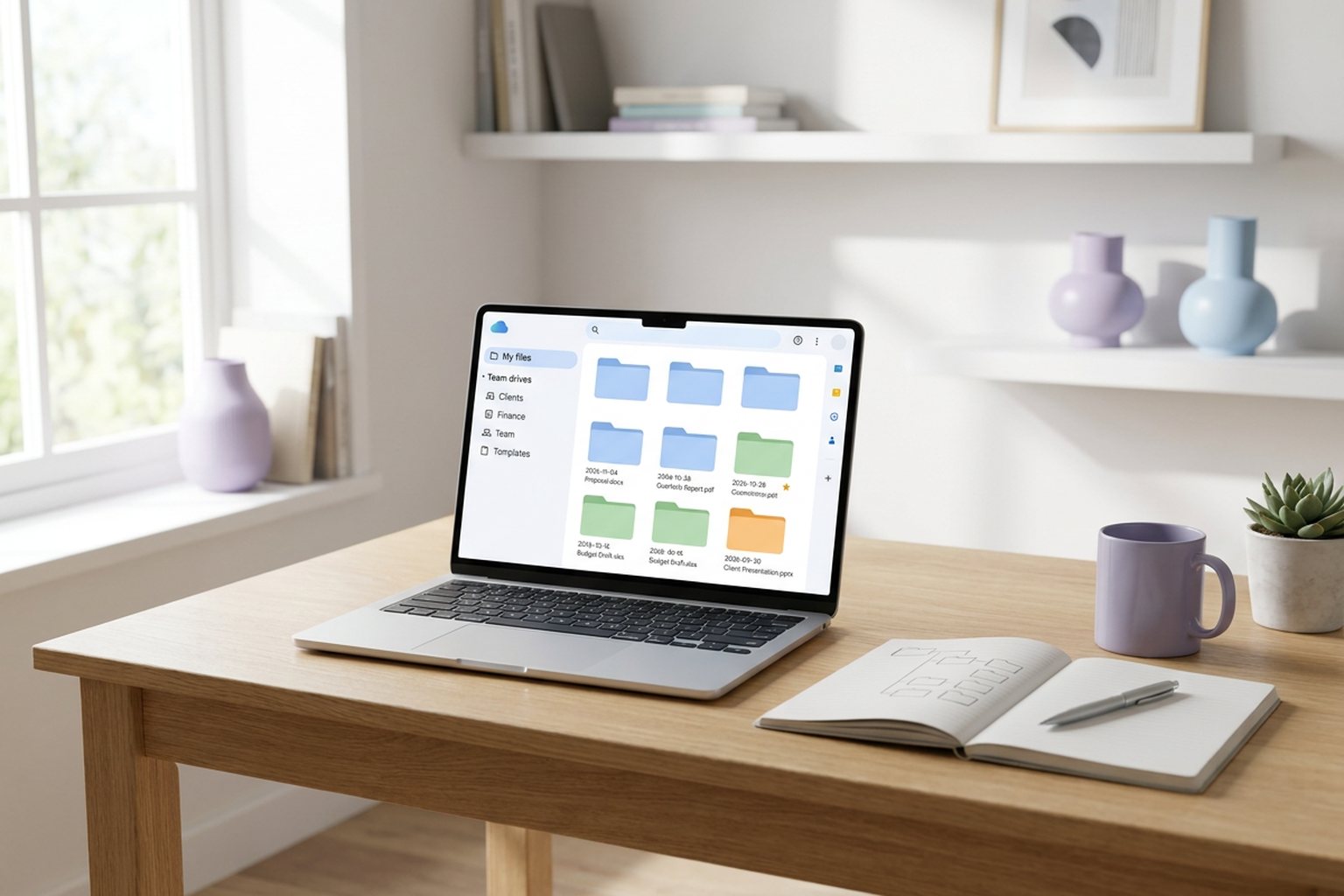
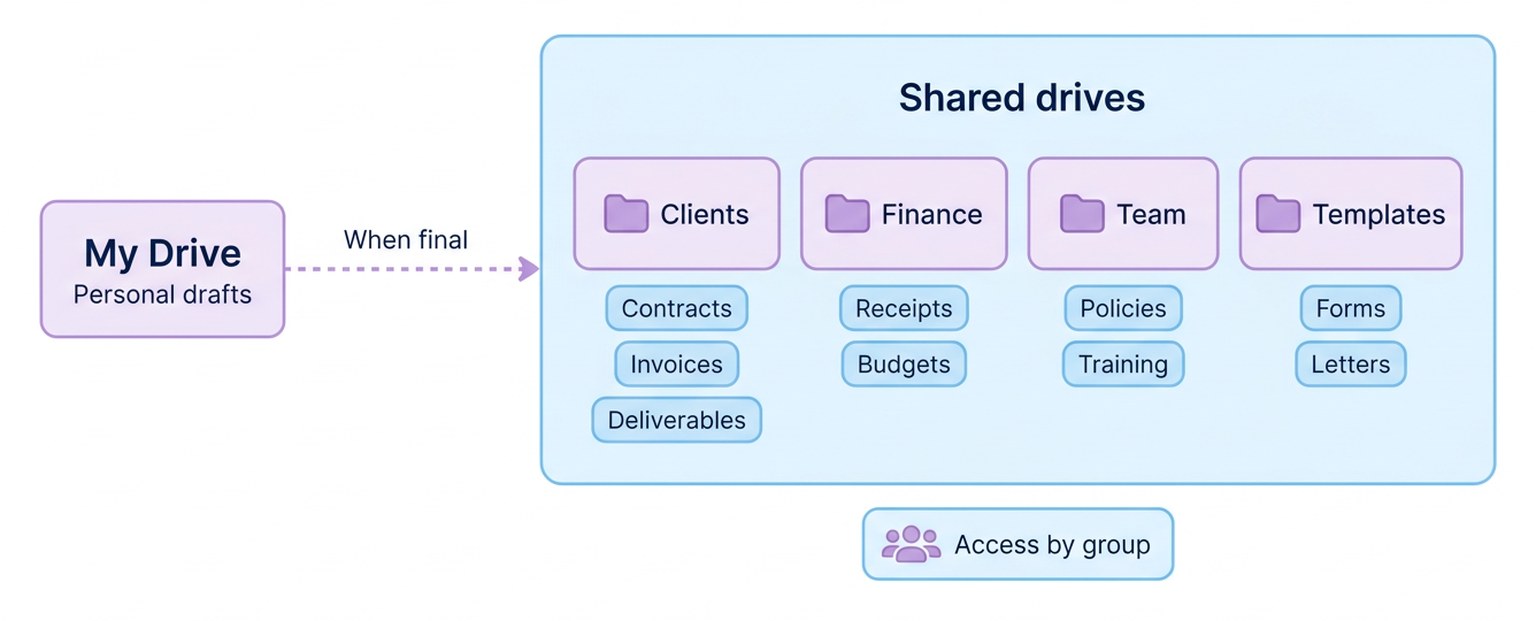
Google Drive has two kinds of space, and mixing them up causes most of the mess: My Drive belongs to one person, while shared drives, which come with most Google Workspace plans, belong to the whole team.
That difference matters more than any folder. A file in someone's My Drive leaves with them unless it is moved, whereas a file in a shared drive stays exactly where it is. So a good rule is simple: drafts can start in My Drive, but anything the team needs to keep goes into a shared drive.
A Google Drive Folder Structure That Works
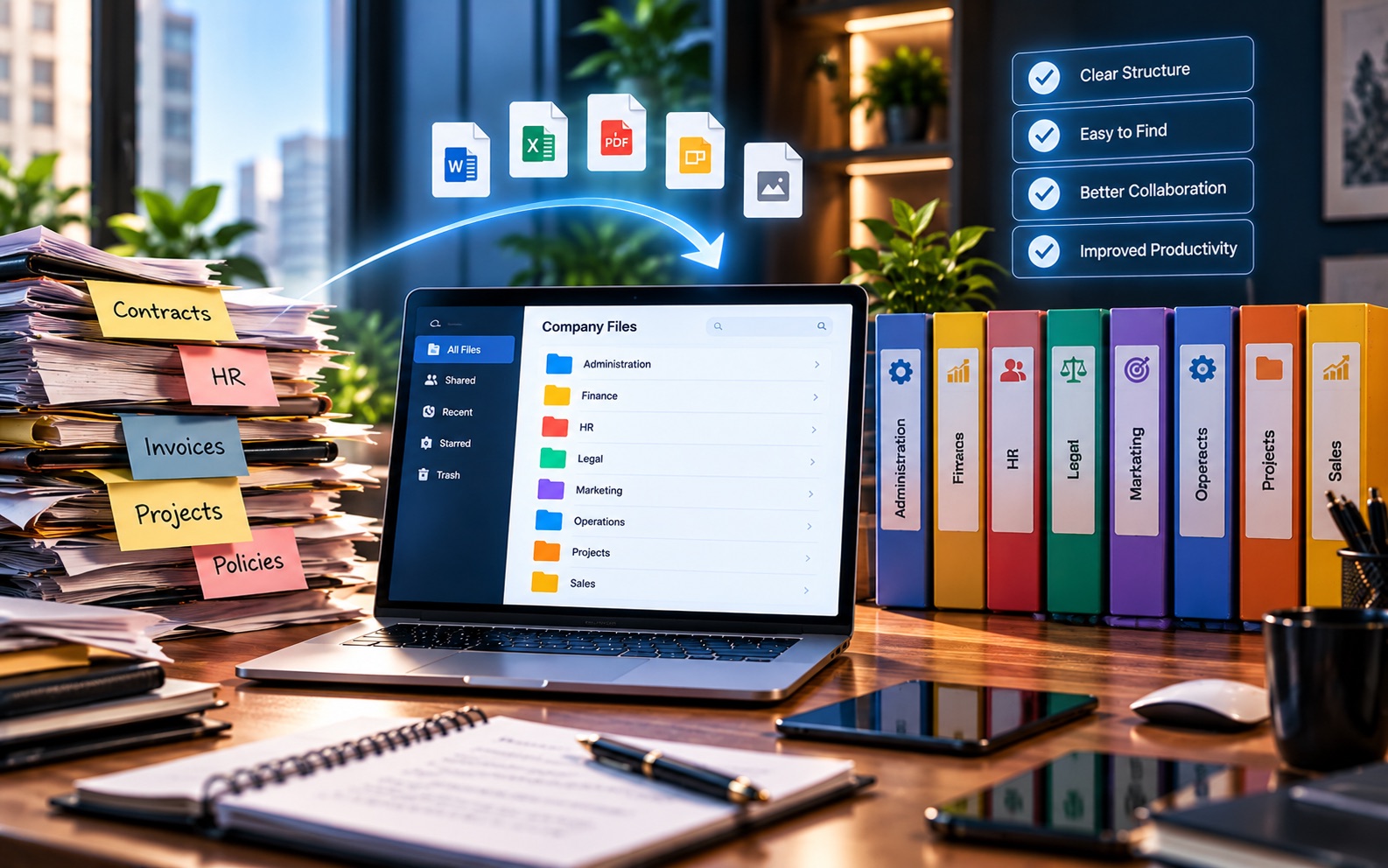
The best way to organize Google Drive for a team is to split work into a few shared drives, each with a short list of folders. A Google Drive folder structure like the one below suits most small teams:
| Location | What Goes Inside | Who Gets Access |
|---|---|---|
| Shared drive: Clients | One folder per client, with the same subfolders inside each | Staff who work with clients |
| Shared drive: Finance | Invoices, receipts, budgets, and tax papers | Owners and finance staff |
| Shared drive: Team | Policies, hiring files, and training | Managers, with some folders open to all |
| Shared drive: Templates | Blank forms and standard letters | Everyone, as viewers |
| My Drive | Personal drafts and notes | Just you |
Keep folders no more than three levels deep, because when a file sits five clicks down, people stop looking and start searching or asking.
How to Organize Google Drive in 7 Steps
If your Drive is already busy, do not try to fix it in one sitting; work through these steps gradually over a week or two.
- See what you have by sorting files by last modified and noting the folders people really use.
- Agree on three to five shared drives that reflect how your team actually works.
- Create the folders inside each shared drive, keeping the list short and writing it down.
- Move files in, starting with current work, while older files wait in an Archive folder.
- Pick one naming pattern, starting each file name with the date and then a short label.
- Use shortcuts instead of copies, so one file can appear in two folders without a duplicate.
- Give access to groups rather than individuals, so new hires get everything they need in one step.
How to Organize Files in Google Drive Day to Day
Knowing how to organize files in Google Drive is mostly about habits. A good layout only stays useful if new files consistently land in the right place, and these everyday habits help:
- Name files with the date first, such as 2026-11-04 Proposal Harbor Supply, so they sort in order.
- Save a file into the right folder when you create it, not "later".
- Star the few files you open every day, so they are one click away.
- Give key folders a color, so they stand out in a long list.
- Use the search filters for type, owner, and date before you go digging through folders.
How to Organize Google Drive Folders for Clients
Client work is where Drive gets messy fastest, because every new client brings a new folder. When people ask how to organize Google Drive folders for clients, the answer is consistency: give every client folder the same subfolders, such as Contracts, Invoices, Correspondence, and Deliverables. Then copy that empty set each time a new client starts, so anyone on the team can open any client folder and know exactly where to look.
Set Sharing Rules Before You Need Them
Sharing is the other half of keeping Drive organized, because a tidy folder is not much use if the wrong people can open it or the right people cannot. Decide early who can add files, who can only view them, and who manages each shared drive, then record those decisions alongside the folder layout.
Google Workspace lets you share a whole shared drive with a group and give everyone in it the same role, which is far easier to maintain than inviting people one file at a time. Review those roles every few months, and especially whenever someone changes jobs or leaves the company.
How to Clean Up Google Drive
Most teams need a cleanup before a new layout can stick, so plan for a few short sessions rather than one exhausting afternoon.
- Open the Storage view to see your largest files first.
- Delete duplicates and old exports you no longer need.
- Move finished projects into an Archive folder.
- Check files shared with "anyone with the link" and close the ones that should be private.
- Remove access for people who have left the team.
- Empty the Trash once you are sure. Items in Trash are removed after 30 days anyway.
Google Drive Organization Tips for Busy Teams
These Google Drive organization tips keep a tidy setup from slipping back into chaos:
- Give each shared drive an owner who decides on new folders.
- Ban folders named "Misc", "Other", or "New Folder".
- Review loose files for ten minutes once a week.
- Write the layout on a single page and pin it at the top of each shared drive.
A Common Scenario
A six-person agency keeps every file in My Drive, so when a designer leaves, half the brand files go with her account and someone spends a day recovering them. The team then sets up three shared drives, gives each client folder the same five subfolders, and moves current work across in a week. The next time someone leaves, nothing goes missing.
Where Software Fits In
For many teams, a well-organized Google Drive is all they need. It starts to strain when you hold the same papers for every client and need to know which ones are missing or about to expire. That is where a tool like DocuStacker helps, with the same folders for every client and reminders before dates pass. If you are weighing that step, read about the signs that Drive is no longer enough.
The Bottom Line
How to organize Google Drive comes down to a few choices made once. Keep team files in shared drives, give each one a short folder list, name files consistently, and clean up a little every week, and your team will spend far less time searching for documents.